
How To: Publish a Canvas Course Early in Read-Only Mode
Learn how to publish your Canvas course site early so that students can preview content like the syllabus and instructor information, while preventing them from submitting any assignments.
How To: Publish a Canvas Course Early in Read-Only Mode
Learn how to publish your Canvas course site early so that students can preview content like the syllabus and instructor information, while preventing them from submitting any assignments.
By:  Leah Henson
How-To: Publish a Canvas Course Early in "Read-Only" Mode
Many times, faculty prefer to publish or open a Canvas site before the first day of the semester so that students can read through things like the Syllabus Page and instructor information ahead of time. If you would like to publish your Canvas course early, but do NOT want students to be able to complete any assignments yet, you will have to restrict student access.
As of this writing, in the Settings > Course Details section of Canvas, Miami courses are populated with the start and end term dates, and the " Students can only participate in the course between these dates" box is checked:
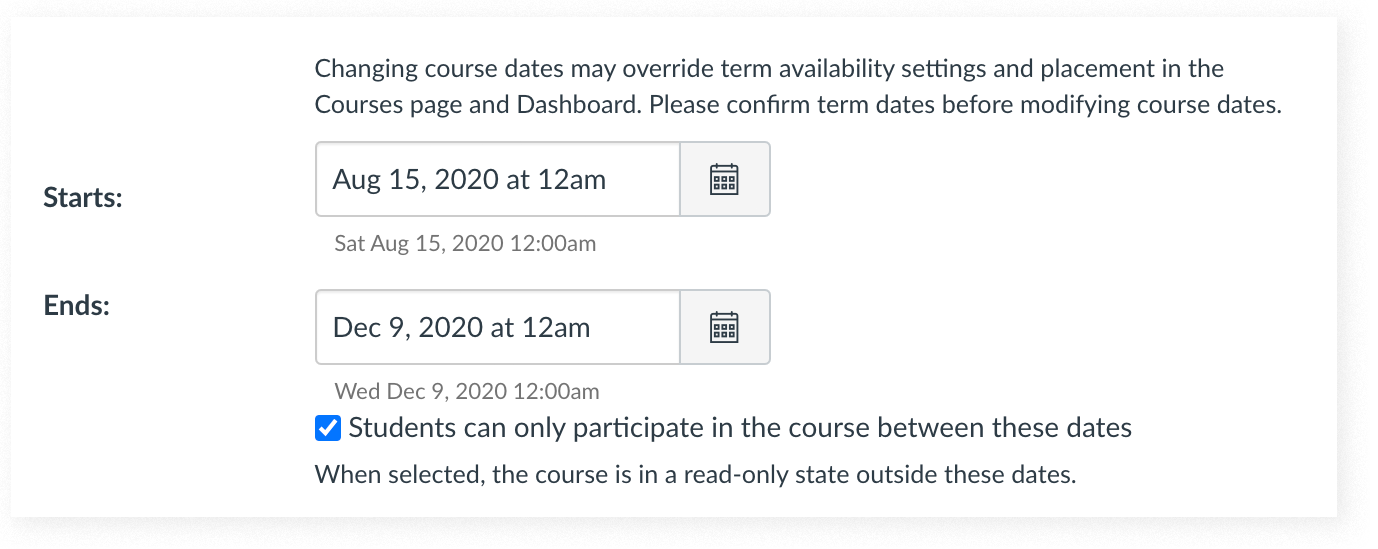
However, the Canvas Course Visibility flowchart shows that the Section information will override those default dates. So to truly restrict students from participating in an early-published course, you will need to add a start date at the Section level.
To add a start date at the Section level:
- Open your Canvas course, click " Settings" in the left-hand navigation menu, and click the " Sections" tab.
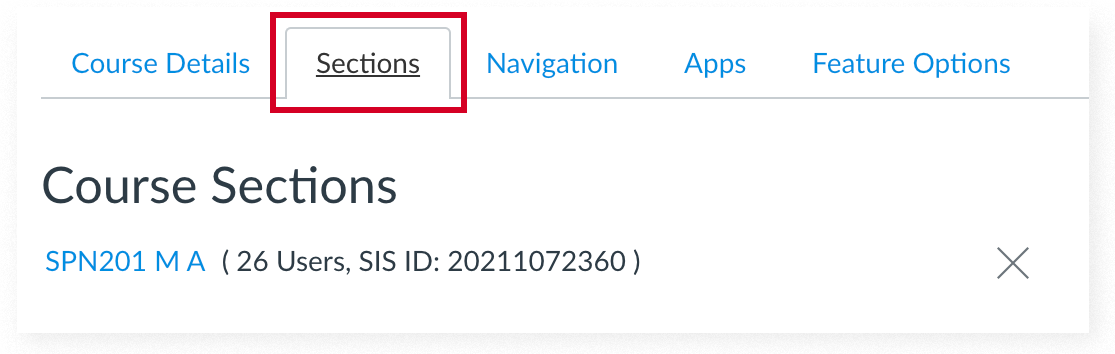
- Click on the course section name, and click the " Edit Section" button in the upper right corner.

- In the " Starts:" field, enter the date you'd like to publish the course (i.e., when students will be able to view and access the course).
- Make sure an appropriate date is listed in the " Ends:" field, and make sure the box is checked for " Students can only participate in the course between these dates."
- Click " Update Section."
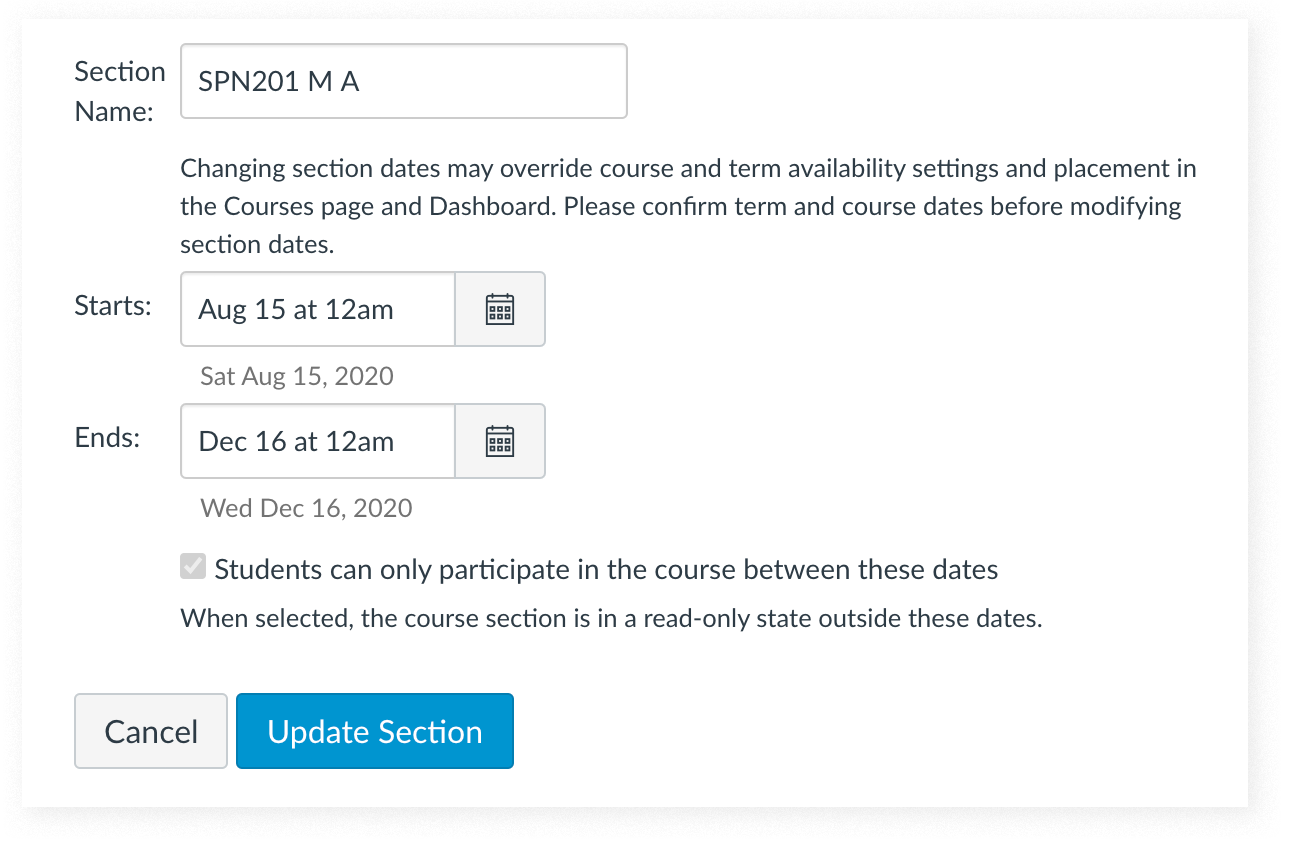
Your course should now be in a read-only state until the date you specified in your Section settings!