
Changes to Google Calendars coming to Miami in October
Changes to Google Calendars coming to Miami in October
IT Services would like to inform the Miami community about some changes that Google is making to calendars that may be highly impactful to Miami folks. We will walk you through what Google is doing and how they are changing calendar management for calendars created by former Miami employees and students.
What’s actually happening
Here’s the rub: On October 5, 2026, Google will be removing secondary calendars with no clear owner.
All secondary calendars created and shared by former Miami folks must have an active user with the role “make changes and manage sharing” to avoid deletion. Three things must be true for the calendar to disappear from your list:
If you:
- have access to a ‘secondary’ calendar that was created by someone no longer at Miami,
- it was shared with you, and
- nobody has the calendar role “make changes and manage sharing” permission;
that calendar will disappear from your list.
Primary vs. secondary vs. resource calendars
There are three types of calendars in Google: primary, secondary, and resource.
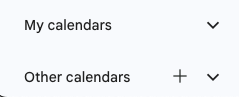
Your primary calendar is the one associated with your name and email address. It appears under “My calendars” in the screenshot above. Secondary calendars are either:
- Any additional calendar that you create in your Google Calendar by selecting the “+” button next to “Other calendars” and selecting “Create new calendar” (these show up under “My calendars”)
- A calendar that someone else created to which you were given access (these can show up under “My calendars” or “Other calendars”)
Resource calendars are created by IT Services and are “owned” by our Google Workspace. Usually used for things like conference rooms that can be added to meetings but are also for departmental use.
Secondary calendars that you did not create are the ones being targeted by Google in October.
What is IT Services doing?
Important: After these calendars are deleted by Google, we will not be able to recover them. IT Services is making a best effort to identify these calendars and take action where we can. However, you can help us ensure that Google does not delete anything you need by checking your calendars list.
Go to your Miami Google Calendar (calendar.google.com) and click the Settings cog in the top right. Along the left-hand side, you’ll see “Settings for my calendars,” with your calendars listed beneath this heading. Click into those and check the “owner” field:
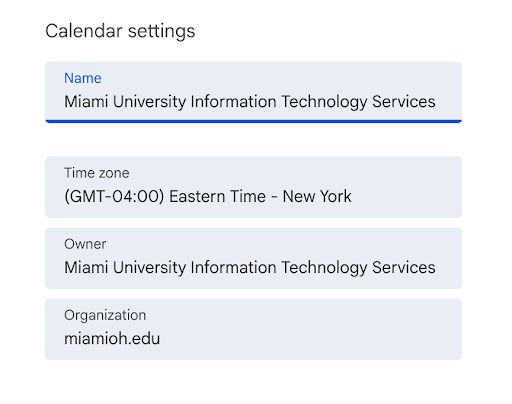
Calendars listed in your “Other calendar” section usually will not display an owner even if one exists. If you discover a calendar in “My calendars” that does not have an owner, and you need to retain that calendar for important business reasons, please contact IT Help.
Moving forward, after Oct. 5, secondary calendars will be removed at the time of account removal. In other words, if an individual created additional calendars in their Miami account, those secondary calendars will be deleted when they are no longer affiliated with Miami. Hiring managers should consider incorporating account management (including email, calendar, and documents) and potential transfer into existing offboarding procedures.
Thank you for helping us work through this change in how Google manages shared calendars.