
Duo MFA for Miami Emeriti and Retirees

Duo multi-factor authentication (MFA) helps Miami keep our data and money safe. On July 15, 2025, members of the Society of Miami Emeriti and Retirees will be required to enroll in Duo in order to access email, Google Drive, the web directory, and more. Here is what you need to know!
Important Note
Emeriti and retirees will not be able to enroll in Duo prior to July 15, 2025. After July 15, you will be automatically prompted to enroll the next time you log in to a Miami system.
How to Enroll in Duo MFA
When you log in on July 15, 2025, you will need to enroll in Duo. By simply logging in to your Miami account on any of your regular services (from any device), you will be automatically asked to enroll.
Follow these steps:
1. Log into any Miami resource
For instance, going to your Miami Mail account from the web browser will prompt you to begin the Duo enrollment process. You may also go to our accounts page: https://accounts.MiamiOH.edu
2. Here, click Get Started
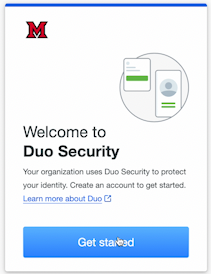
3. Download and configure the Duo Mobile smartphone application
The easiest way to use Duo is to use the Duo Mobile smartphone application. When you log in to a Miami system, the Duo app can push a notification to your phone for you to approve the login. This helps keep nefarious people out of Miami systems! (Here’s another tip: You should be using MFA with all of your online accounts, not just Miami! It adds an extra layer of protection to your online activities.)
4. Select the Duo Mobile option
Input your phone number.
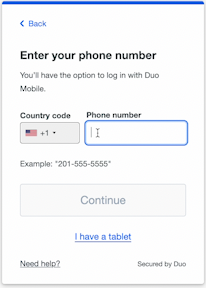
Select Continue, then confirm and then enter the passcode that gets sent to your phone. It should be a six-number code.
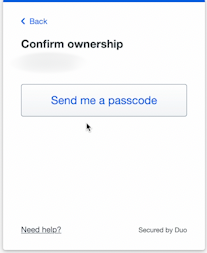
5. Select Verify
6. Download Duo Mobile
You will be asked to download the Duo Mobile app. You can do so by going to your app store and selecting the Duo Mobile app. Duo has a green, all-caps logo.

7. Scan QR code
Once you have the app, open it and select Use QR code, then scan the QR code on your computer screen. Alternatively, you can also opt to receive an activation link in a personal email account (not your Miami email, as you won't be able to get to it without Duo).
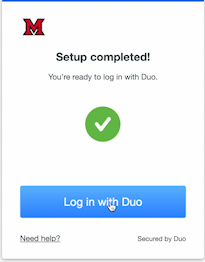
8. Log in now with Duo!
Once you scan the QR code, follow the next few prompts, and then log in again to your Miami email with your new Duo Mobile app!
Duo Enrollment Tutorial
Follow along with our video tutorial as you enroll with your smartphone!
Online security is a complicated issue. In order to fully and effectively protect the information of students, faculty, and staff at Miami University, IT Services utilizes the multi-factor authentication tool Duo.
Multi-factor authentication is the act of using a two-step login process. The first factor is always the same: your Miami password. The second factor involves creating randomized access codes every time you log into University resources.
This extra step is designed to help verify that you are, in fact, who you say you are. Malicious actors trying to gain access to your account may have the password, but they wouldn’t have access to the second factor.
Here are the folks who need to use Duo when they log in to Miami resources:
- Faculty
- Staff
- Students (undergraduate and graduate)
- Courtesy
- Community
- Contingent worker
- Life-long learning
- Alum
NEW: On July 15, 2025, members of the Miami societies of emeriti and retirees (SOME and SOMR) will be required to enroll in Duo.
Note: Entity and parent accounts do not use Duo.
Read more about this below.
Enrolling in Duo is quick, easy, and painless. Most users will be automatically prompted to enroll in Duo at the same time they are setting up their online accounts when starting their journey at Miami (whether as a student, faculty member, or staff member).
Please note: If you are an emeritus or retiree, on July 15, 2025, you will be prompted to enroll in Duo the next time you log into a Miami system (e.g., your email) via the web browser.
When you enroll, you will need to choose your default method for receiving access codes.
IT Services recommends that you download the Duo Mobile app to your smartphone or tablet as your primary method of authentication. It’s the most convenient, easiest way to authenticate. View the enrollment guide for setting up your smartphone with Duo Mobile.
IMPORTANT: None of the phone numbers collected through an individual's enrollment in multi-factor authentication will be shared with any other applications or offices.
Our Knowledge Base links you to Duo guides for getting set up with your preferred device.
How you use Duo depends on the device and method you choose for multi-factor authentication.
- Duo Mobile push notifications: When you log in, you simply grant access from your smartphone's home screen. A push notification will be sent to your device, and you review the request and tap Approve to authenticate. Internet or cellular access is required.
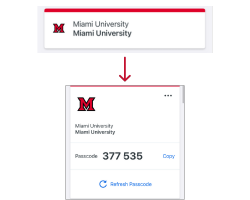
- Duo Mobile Passcode: Launch the Duo Mobile app on your device and click the Miami icon to see your current six-digit code. Internet or cellular access is NOT required for this option, since the passcodes are attached to a certain time stamp.
There are several ways you can receive access codes. At Miami, you can:
- RECOMMENDED: Install the Duo Mobile app on your smartphone, smart watch, or tablet. With the app, you have two options: push notifications or Mobile Passcode.
- Opt into receiving SMS messages.
- Purchase and enroll a hardware security token (USB key).
We recommend that if you have a smartphone or tablet, you download the Duo Mobile app and utilize it as your primary method of authentication. It’s quick, easy, free, and painless.
We are generally trying to discourage the practice of printing out multi-factor codes, but there is a way to get a list of codes sent to you. If you sign up for the SMS option with Duo, when you request a text, it will send you 10 codes, which you can then use when you log in. Plus, if you check the “Remember me for 14 days” box (and use the same browser session), you will only have to get a new list of codes printed to you around three times a year. (You can also use this option when studying abroad.)
For the typical user, you will see a Duo prompt once every 14 days on your primary computer and browser.
However, there are a few factors that may cause that number to vary, including:
- The website you’re accessing (for added security, some sites always require a multi-factor authentication).
- Your individual browser settings (whether or not you clear cookies or are using an incognito browser—incognito sessions will be prompted for Duo every time).
- Whether or not you use more than one device and web browser (Duo authentication is required at least every 14 days for each device, browser, and browser session you use to access Miami resources).
- Important note about internet browsers (e.g., Firefox, Chrome, Edge): When logging in via Duo, if your browser is out of date, it will notify you. Please update your browser to prevent receiving this notification. Your browser must be current by at minimum 365 days to allow login.
- For VPN users: If you're logging into VPN, you will be prompted for a Duo code each time.
The unfortunate reality of our world is that hackers are routinely trying to steal your passwords and use them for various evil things like stealing your identity, stealing money from Miami, changing grades, and a host of other terrible things. As more and more of the members of the Miami community have been affected in these ways, we have come to realize, as most universities have, that a solution like Duo is a necessity.
Miami users are required to use Duo and will be prompted to enroll when they attempt to access a password-protected Miami service (email, Banner, Workday, myMiami, etc).
Unfortunately, our licensing terms do not allow us to provide Duo to our parent population. Anyone who is in this group will only be protected by their Miami password. This highlights the importance of following good password practices!
It happens to the best of us—either we misplace something or forget to grab it on the way out the door. In this situation, call IT Help at 513-529-7900 (or initiate a live chat at MiamiOH.edu/ITChat) and, once you've verified your identity, they will be authorized to give you bypass codes. At this point, you will not need Duo to log in to your account for the next 24 hours.
Important note: This is a limited-use service. Don't forget your second-factor device after this!
We recommend that anyone who travels internationally and needs to log in to Miami websites use the Duo Mobile Passcode option or a hardware token. You can use the Duo Mobile app to generate your authentication code without an internet or cellular connection. If you don’t have a smartphone or tablet, you may purchase a hardware token (USB key) that generates codes.
Contact IT Services