
Canvas Accessibility Checker
The Canvas Accessibility Checker scans Pages and Assignments against some of the most critical accessibility barriers. Once a course has been scanned, the tool automatically scans new and edited resources. The Accessibility Checker checks for the following common accessibility issues in the Rich Content Editor:
- Missing image alt text: An image does not include descriptive alt text.
- Alt text length: Image alt text exceeds 200 characters.
- Image filename used as alt text: The alt text matches the image filename instead of describing the image.
- Tables without headers: A table does not include at least one header.
- Table header scope: A table header does not define appropriate scope.
- Tables without captions: A table does not include a descriptive caption.
- Duplicate or broken links: Multiple links point to the same URL, or spaces break a single link into multiple links.
- Misformated lists: Content appears to be a list but is not formatted using list structure.
- Skipped heading levels: Heading levels are not sequential (for example, H2 followed by H4).
- Note that the tool does not check if the first header starts with H2 or whether the headings are sequential with the rest of the content in the page.
- Heading length: A heading exceeds 120 characters.
- Heading 1 in content: An H1 heading is used within the page content.
- Small text contrast: Small text does not meet WCAG 2.1 Level AA color contrast requirements.
- Large text contrast: Large text does not meet WCAG 2.1 Level AA color contrast requirements.
Accessibility checks do not cover items such as color contrast errors in internal or external CSS, embedded third-party tools (like LTI tools or external learning apps), custom JavaScript or interactive widgets, iframes and externally hosted content, and interactive elements such as simulations, quizzes, or drag-and-drop activities.
The course Accessibility Checker cannot scan courses with more than 1000 pages and assignments in total or content with an HTML body larger than 125 KB.
Run the Accessibility Checker
In Course Navigation, click the Accessibility link. Then click the Scan Course link or button.
Note: The scan can take anything from a few seconds to a few minutes depending on the size of the course.
 Viewing and Fixing Issues
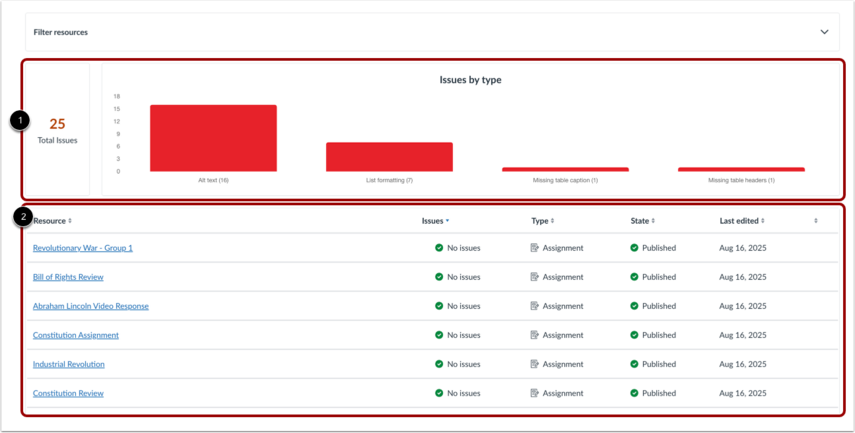
The central interface displays high-level information, including the total number of active issues on the course, and a bar chart illustrating their distribution by issue type. It also lists the scanned resources, showing the number of issues found on each of them.
To address issues on a resource, click the Fix button. One issue at a time will display, showing the problem area and issue description. Select a remediation option. To correct the issue, apply the change.
Canvas Support: How do I use the Accessibility Checker in Canvas?